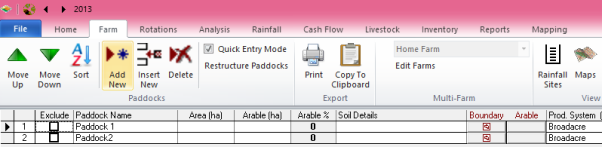
Import Mapping Files (KML, SHP), Assign Paddock Names and Coordinate System
Import polygons
We are now ready to tell the program which polygon belongs to which paddock. We can assign existing paddock names, or create new paddocks as we go through the Mapping function. Areas can also be calculated and inserted from the polygon information.
Allocate Paddock Names to each Polygon
At this point, you should be able to see your paddock shapes on the screen, and should be able to ‘select’ them one at a time by clicking in them.
Note: the program can calculate your paddock area from this image, tick “Auto-Area” on and select two decimals places (highest accuracy) in the drop-down box. This will override any existing paddock areas in your client file. Use with caution.
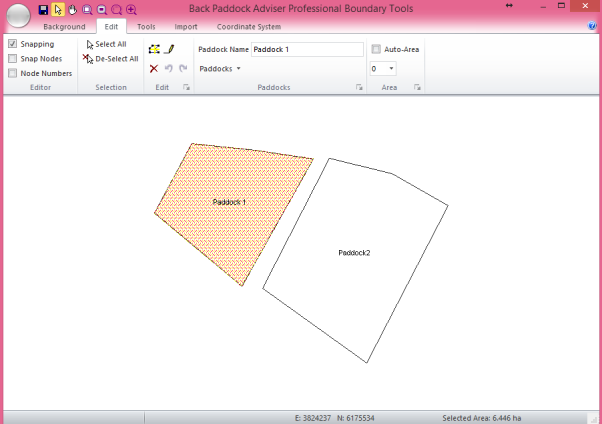
Existing Paddock Names
This is important to reference your images, according to ‘zone’ based on the longitude of your farm. Paddocks must be assigned with names before this step occurs, or they will not be saved.
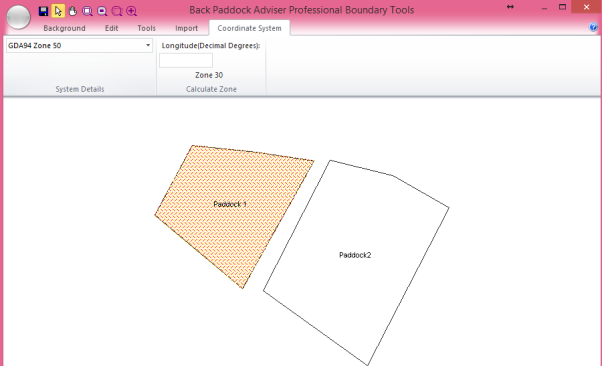
If you are setting your coordinate system for multiple farms (for example, if Maps have been created in the App) this should be set for each farm individually.
You have now successfully Imported your Maps, assigned their Paddock Names and set the Coordinate system. You may now close the Mapping pop-up box by clicking the X in the top right corner to return to the main Adviser program.